



Summary:
Laptop fan noise usually happens when your system is overheating, running heavy tasks, or struggling with dust-clogged airflow. To stop it, reduce CPU/GPU load, clean vents, adjust power or fan settings, update drivers/BIOS, and check for hardware faults if the noise persists even when the laptop is idle.
Introduction
If your laptop fan suddenly sounds loud, it’s usually a sign the cooling system is working overtime. This can be due to high performance load, poor ventilation, outdated drivers, or internal dust buildup. The good news is that most fan noise issues can be fixed with simple adjustments—no advanced technical skills required.
This guide walks you through proven, step-by-step solutions to stop laptop fan noise and keep your system cooler and quieter.
Why Is My Laptop Fan So Loud?
Your laptop fan becomes noisy mainly because it is trying to cool excess heat. This typically happens when:
- Too many heavy apps are running
- Air vents are blocked or dusty
- Power settings are set to high performance
- Drivers or BIOS are outdated
- The fan itself is worn out or damaged
Understanding the cause helps you apply the right fix instead of guessing.
How to Reduce Laptop Heat and System Load?
Most fan noise starts with high CPU or GPU usage. Lowering system load can immediately reduce noise.
1. Close Heavy Background Apps
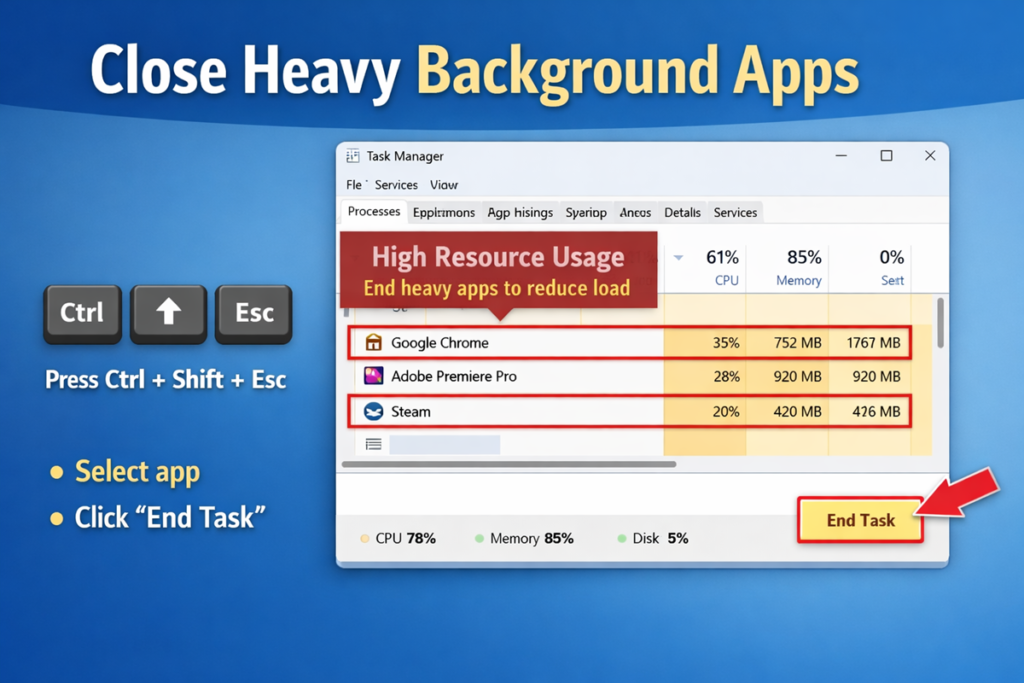
Open Task Manager (Ctrl + Shift + Esc) and check which apps consume the most CPU or memory.
Common culprits:
- Browsers with many tabs
- Video editing software
- Games and streaming apps
- Large downloads running in background
Close unused apps to instantly reduce fan speed.
2. Disable Unnecessary Startup Programs
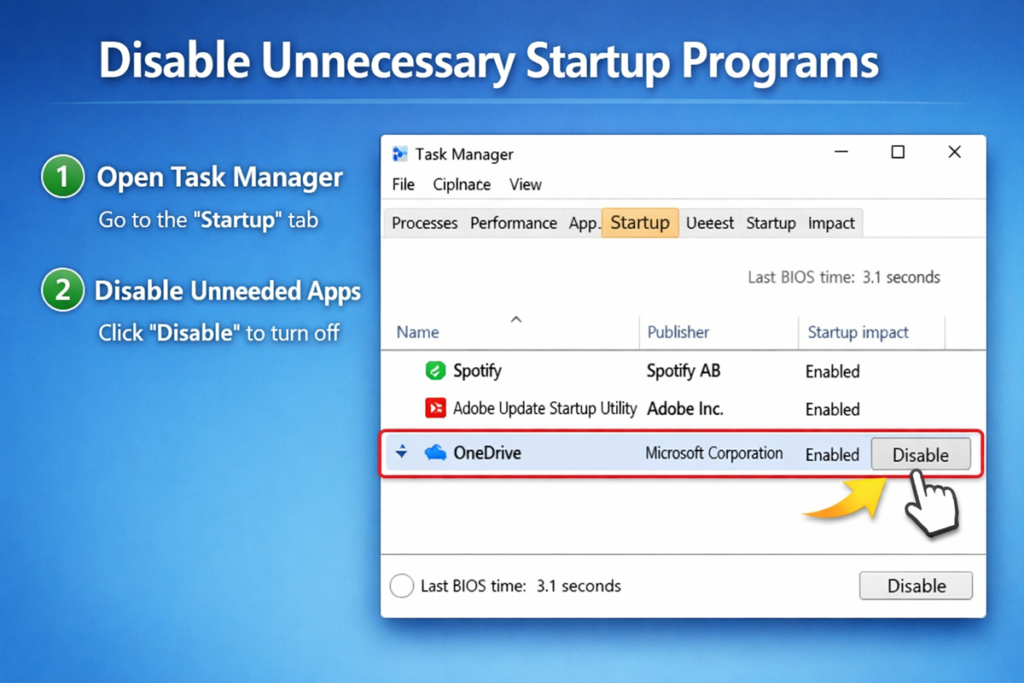
Many apps start automatically and keep your laptop busy from boot.
Steps:
- Open Task Manager → Startup tab
- Disable apps you don’t need on startup
This reduces constant background load and keeps the fan quieter.
3. Avoid Multitasking with Heavy Software

Running gaming, streaming, and video rendering together forces your system to heat up quickly. Try running only one heavy task at a time to maintain quieter cooling.
Related Resources & Useful Links
How to Clean Dust and Improve Laptop Airflow?
Dust buildup is one of the most common causes of loud laptop fan noise.
1. Safely Clean the Cooling Vents
- Turn off and unplug the laptop
- Use compressed air to blow dust from side/back vents
- Do not blow air through the keyboard
This helps clear airflow blockage and improves cooling efficiency.
2. Use Proper Surface Placement
Always place the laptop on a hard, flat surface. Avoid:
- Beds or cushions
- Blankets or sofas
Soft surfaces block vents and trap heat, making the fan spin louder.
3. Consider a Cooling Pad or Stand
A laptop stand or cooling pad improves airflow underneath the device, reducing temperature and fan activity during heavy use.
How to Adjust Power and Fan Settings for Quieter Performance?
Changing system power settings can directly reduce fan noise.
Switch to Balanced or Power Saver Mode
- Go to Settings → System → Power & Battery
- Select Balanced or Best power efficiency
This limits excessive CPU usage and reduces heat generation.
Use Built-in Manufacturer Fan Control Tools
Some brands offer silent or quiet fan modes via their utilities:
- Lenovo Vantage → Quiet Mode
- ASUS Armoury Crate → Silent Profile
These presets adjust fan curves to balance cooling and noise.
Do Driver and BIOS Updates Help Reduce Fan Noise?
Yes. Outdated drivers and BIOS can mismanage thermal control, causing fans to spin unnecessarily fast.
What to Update
- Graphics drivers
- Chipset drivers
- BIOS/UEFI firmware
Always download updates from the official laptop manufacturer’s support page and follow instructions carefully, especially for BIOS updates.
How to Check if the Laptop Fan Is Faulty?
If your fan is loud even when the laptop is idle and cool, the issue may be mechanical rather than thermal.
Signs of a Faulty Fan
- Grinding or rattling noise
- Loud spinning at idle
- Temperature stays normal but noise persists
Use temperature-monitoring tools or your OEM utility to verify whether overheating is actually occurring. If temperatures are normal but noise is mechanical, a fan replacement is the best solution.
Quick Troubleshooting Checklist
Use this quick action list to stop laptop fan noise fast:
- Close heavy apps via Task Manager
- Disable unnecessary startup programs
- Clean dust from vents with compressed air
- Use a cooling pad or hard surface
- Switch power mode to Balanced/Power Saver
- Update drivers and BIOS
- Replace fan if mechanical noise continues
FAQ: How to Stop Laptop Fan Noise
Conclusion
Laptop fan noise is usually a warning sign that your system is running hot or working harder than necessary. By reducing background load, cleaning dust, optimizing power settings, and updating drivers, you can significantly quiet the fan and improve overall performance. If noise continues even at idle, a hardware check or fan replacement is the most reliable long-term fix.