


 Arun Kumar
 (Quick Overview)
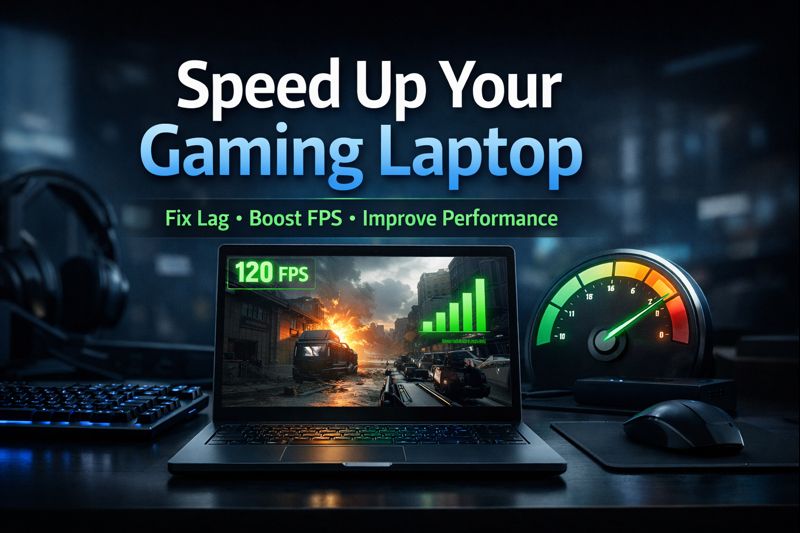
To speed up a gaming laptop, update your GPU drivers, enable Windows performance features, close unnecessary background apps, clean cooling vents, monitor temperatures, and upgrade to at least 16GB RAM and an NVMe SSD. These changes improve FPS, reduce lag, and deliver smoother gameplay without complex technical work.
Why Gaming Laptops Slow Down Over Time
Gaming laptops often slow down due to:
- Background applications consuming system resources
- Thermal throttling caused by dust and heat buildup
- Outdated GPU drivers and system settings
- Limited RAM or slow storage
Addressing these areas helps improve gaming laptop performance in a practical and measurable way.
Software Tweaks to Speed Up a Gaming Laptop
Software optimization is the fastest way to see performance gains.
Update Graphics Drivers
Keep your GPU drivers updated using:
- NVIDIA GeForce Experience
- AMD Adrenalin Software
Updated drivers often deliver noticeable FPS improvements and better game stability.
Enable Windows Performance Features
Turn on built-in features designed for gaming:
- Windows Game Mode
- Hardware-Accelerated GPU Scheduling
- High Performance power plan (while plugged in)
These settings ensure system resources are prioritized for gaming.
Reduce Background Load
To fix a gaming laptop running slow, reduce unnecessary tasks:
- Close unused apps while gaming
- Disable startup programs
- Use trusted one-click debloating tools like Hone or Chris Titus Tech’s winutil
Fewer background processes mean lower CPU and RAM usage during gameplay.
Hardware Maintenance That Improves Performance
Regular maintenance prevents performance drops caused by heat.
Clean Cooling System
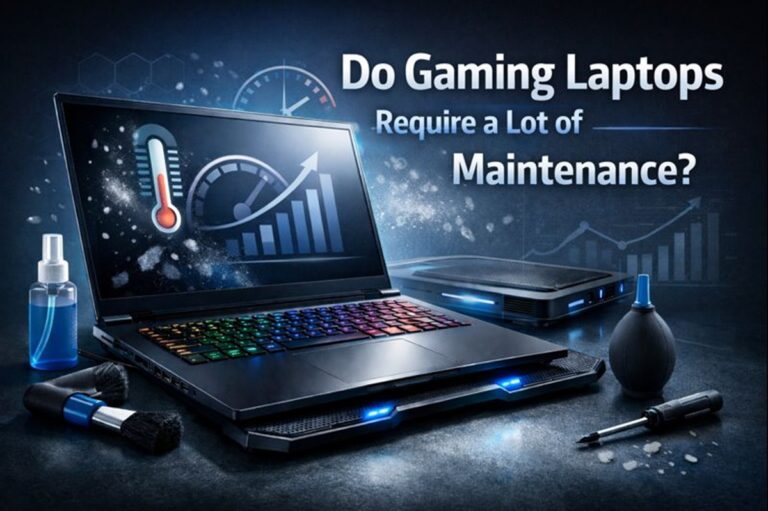
Dust buildup restricts airflow and causes thermal throttling.
- Clean vents and fans with compressed air every few months
- Always game on a flat, elevated surface for better airflow
Monitor Temperatures
Use tools like HWMonitor to track CPU and GPU temperatures.
- High temperatures indicate cooling issues
- Replacing thermal paste after about a year can help restore proper heat transfer
Avoid Battery Throttling
Always play games while plugged in, as gaming on battery limits performance to conserve power.
Key Upgrades That Make a Gaming Laptop Faster
If optimizations are not enough, small upgrades deliver big results.
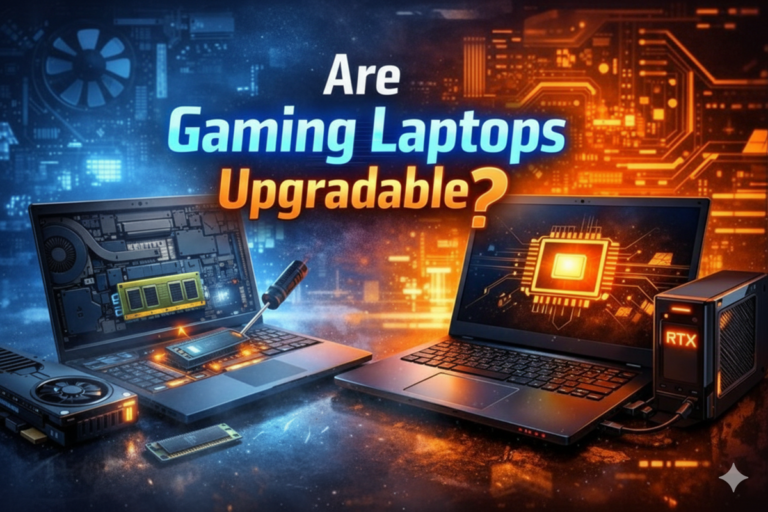
Upgrade RAM
- Upgrade to 16GB or more RAM if your system has less
- Reduces stutters and frame drops in modern games
Use an NVMe SSD
- Install games on an NVMe SSD for faster load times
- Most gaming laptops offer accessible SSD slots
Improve Network Stability
- Use Ethernet instead of Wi-Fi for online gaming
- Reduces ping and connection drops, acting as a reliable gaming laptop lagging fix
🎮 Planning to Buy a Gaming Laptop?
Learn how to choose the right GPU, RAM, cooling system, and performance specs before buying.
Read Complete Gaming Laptop Buying Guide →FAQs
Conclusion
You do not need to replace your laptop to make it perform better. By combining gaming laptop performance optimization techniques—software tweaks, proper maintenance, and smart upgrades—you can extend your system’s lifespan and enjoy smoother gameplay.
If you are deciding whether to upgrade, optimize, or replace your gaming laptop, start with these steps first. They help you make confident performance and buying decisions without unnecessary spending.